Creating and Linking Quotes to Jobs with Defects
Turn defects into customer-ready remedial quotes with automatic job linking. Learn the three ways to create a quote from a job's defects, how to add or edit defects from the office, and how to delete one raised by mistake.
Last updated: 24 September 2026
Availability
Logging and editing defects: Super Admin, Admin, Contract Manager, Site Manager, Engineer (in the field app)
Creating remedial quotes: Super Admin, Admin, Accounts, Contract Manager, Sales Manager
Deleting a defect raised by mistake: the person who raised it, or Super Admin, Admin and Site Manager
Choosing the template used for remedial quotes: Admin only (Settings → Sales → Quote Defaults)
The 30-Second Version
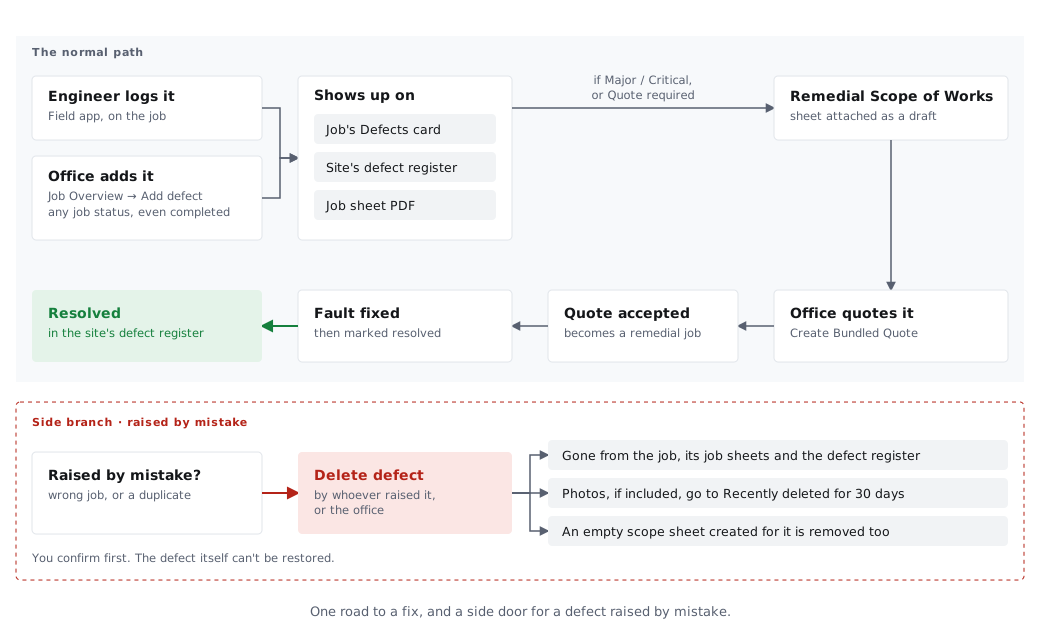
When an engineer logs defects on a job (or the office adds them from the job page), Opscel gives you three ways to turn them into a customer-ready remedial quote, and every one of them keeps a permanent, visible link between the quote and the job it came from. When the customer accepts, the quote becomes a remedial job, and once the fault is fixed the engineer or the office marks the defect resolved on the site's register.
What This Guide Covers
- •Adding and editing defects from the office job page
- •Three ways to create a remedial quote from a job's defects
- •How quote-to-job linking works automatically
- •Viewing the link from both the quote and the job
- •Deleting a defect that was raised by mistake
- •Who can do what, and when each button appears
Two Paths for Remedial Quotes
This guide covers creating quotes directly from defects, from the job page or the dashboard widget. There's also a Worksheet Path where engineers fill out a detailed Remedial Scope of Works on-site before the quote is generated.
See Remedial Scope of Works Guide for the worksheet-based workflow.
Defects and Carried-Forward Faults Are the Same Record
One defect, seen from two places. A defect is logged against the job where it was found. Carried-Forward Faults in the field app is the site-level view of those same defect rows: every open defect at the site, including ones found on earlier visits, so the next engineer can see them and tick off what they put right.
There is no second record to keep in step, so log each issue once. If the same fault has been logged twice, delete the duplicate (see Defect raised by mistake? Delete it). See Fire Safety Jobsheets & Fault Tracking for more on Carried-Forward Faults.
Need More Help?
If you're stuck or need assistance, our support team is here to help.
Related Guides
Field Service App
How engineers log, edit and delete defects on-site
Fire Safety Fault Tracking
Carried-Forward Faults: the site-level view of defects
Certificates
Issuing certificates after remedial work
Remedial Scope of Works
Bundling defects into a formal remedial quote
Quote to Invoice Workflow
End-to-end from quote to invoice
Quote Defaults
Settings that shape defect and remedial quotes